

Python is a powerful programming language that can be used for everything from web development to data research. If you use Ubuntu and want to run Python code from the command line, this comprehensive article will bring you through the procedure step by step.
Running Python code in the Ubuntu command line is a fundamental skill for any programmer or developer. Python’s flexibility and power and Ubuntu’s command line interface along with Ubuntu’s command line interface, allow you to efficiently write, execute, and debug Python programs. It enables you to enjoy Python’s full capability without the requirement for a graphical user interface.
Key Takeaways
- On Ubuntu, you usually run a Python script from the terminal with
python3 your_script.py. - Before running code, check that Python 3 is installed by using
python3 --version, and install it withsudo apt install python3if needed. - Save your code in a
.pyfile, move to that folder withcd, then execute the file from the command line. - If the script fails, check the error message, confirm the Python version, and verify that required modules are installed.
- For more advanced usage, Ubuntu lets you run Python with command-line arguments, virtual environments, pip, background jobs, and scheduled tasks.
What is Ubuntu?
Ubuntu is a free and open-source operating system built on the Linux kernel. It is one of the most popular Linux distributions, designed to be user-friendly and accessible to a wide range of users. Canonical Ltd. and a global volunteer community work together to create Ubuntu.
Ubuntu offers a complete desktop environment with a graphical user interface, making it appropriate for both novice and experienced users. It comes with a variety of pre-installed software, including a web browser, office productivity suite, media players, and others. Furthermore, Ubuntu includes a big software repository that users may use to effortlessly install and update additional software packages. Canonical updates Ubuntu every six months, with long-term support (LTS) versions provided every two years.
Ubuntu has grown in popularity because of its ease of use, community support, and adherence to open-source software principles. Individuals, educational institutions, enterprises, and organizations all around the world utilize it for a variety of reasons, including desktop computers, servers, and cloud infrastructure.
Prerequisites To Run Python Code in Ubuntu Command Line
Before we get started with the procedures for running Python code in Ubuntu command, make sure you have the following prerequisites installed on your system:
- Python Setup:
Verify that Python is installed on your Ubuntu computer. Open the terminal and type “python3 –version” to check the installed Python version.
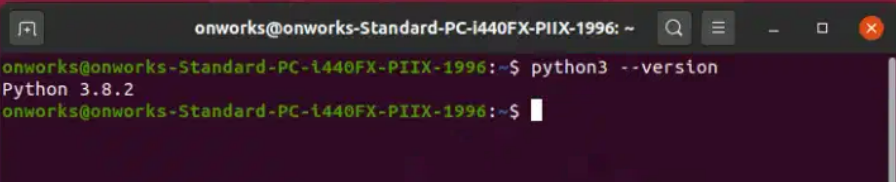
If you haven’t already installed Python, you can easily do so by typing the command for the package manager apt.
sudo apt update
sudo apt install python3
- Text Editor:
Select a text editor of your preference to write your Python code. You can use a variety of text editors, including Notepad, Sublime Text, Atom, Visual Studio Code, etc. Install your preferred text editor if it is not already available on your system.
After setting up our prerequisites, let’s proceed to run Python code from the Ubuntu command line.
How to Run Python Code in Ubuntu Command Line?
1. Launching the Terminal
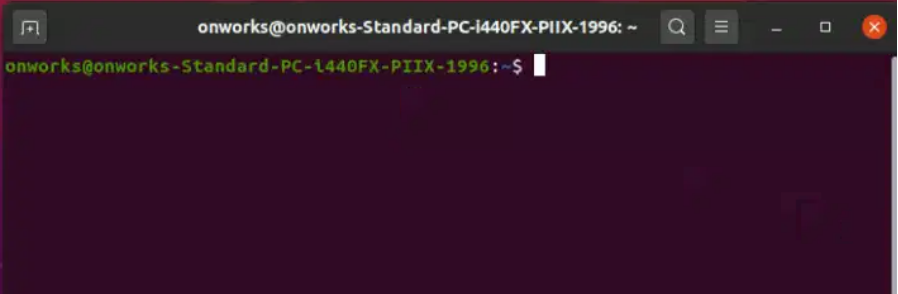
To start, launch the terminal by clicking on the terminal icon in the Ubuntu launcher.
OR
On your keyboard, hit Ctrl + Alt + T. This is the most commonly used keyboard shortcut in Ubuntu to launch the Terminal.
- After you’ve opened the Terminal, you can start executing Python code or running other commands.
2. Writing Python Code
Using any text editor or integrated development environment (IDE) of your choice create a new Python file with the .py extension.
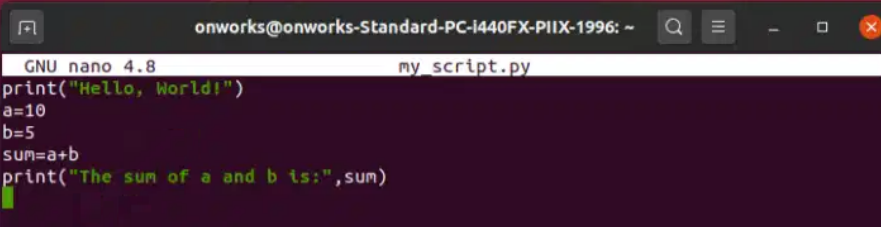
For example, you can run the command “nano my_script.py”

to create a new file named my_script.py in the Nano text editor. When the file is open, you can start writing your Python code.
3. Saving the Python File
After writing your Python code, it is essential to save the file before executing it. To save the file in Nano, press Ctrl+O, enter the desired file name, and hit Enter. Then press Ctrl + X to leave Nano.
4. Executing Python Code
- In the terminal, navigate to the directory where you saved your Python file using the cd command. For example, if your file is located in the Documents directory, you can use cd Documents to navigate to that directory.
- Once you are in the correct directory, you can execute the Python file using the Python command followed by the name of your Python file.
- For example, if your file is named my_script.py, you can use the following command:
Python3 my_script.py
The command python3 is used to execute Python3 files.

5. Analysing the Results
If your Python code generates any output, it will be shown in the terminal after the script has been run. To make sure your code is operating properly and producing the desired outcomes, you can check the output.

6. Debugging Python Code
Debugging is an important aspect of the software development process, especially in Python programming. When facing issues or unexpected behavior in your Python code, you can follow these steps to debug and identify the problem:
- Review error messages: If your code generates an error message, carefully review it to determine the reason for the error.
- Typically, an error message includes a traceback that identifies the line of code where the issue occurred. We can locate the problem and resolve it using this information.
- Use print statements: Place print statements strategically throughout your code to check variable values, monitor the execution’s course, and pinpoint potential trouble spots. You can get an understanding of the condition of your program at various points by printing intermediate values or messages.
- Comment out pieces of code: If you suspect that a specific section of code is causing the problem, you may temporarily comment it out by adding a # at the beginning of each line. You can then isolate and focus on the problem.
- Utilize a debugger: Python provides several debugging tools and libraries that can assist in the debugging process. The built-in PDB module allows you to set breakpoints, step through code, and inspect variables interactively. There are also third-party debuggers like PDB++, IPDB, or integrated debugger support within IDEs such as PyCharm or Visual Studio Code.
- Verify input and presumptions: Check the input information and presumptions in your code. Verify that the input is correct and that the format is what is anticipated. Check to make sure any inferences you have drawn about the data or program behavior are correct.
- Code simplification: If you have a complicated codebase, try to make a straightforward, self-contained example that replicates the problem. By making the code simpler, you can concentrate on the particular issue at hand and get rid of any unnecessary distractions.
- Take breaks and seek help: If you’re stuck and unable to find a solution, take a break and return to the problem later. A new perspective can be beneficial at times. You can also seek assistance from colleagues, mentors, or online forums to obtain feedback from others.
Advanced Applications
Certainly! Running Python code from the Ubuntu command line gives various advanced options and features that might improve your programming experience. Here are a few examples:
- Command-line Arguments: You can pass command-line arguments to your Python script once you run it from the command line. These parameters can be accessed within your script using the sys.argv list. This allows you to provide input or configuration options to your code without changing the script itself.
For example, Consider the following Python script, “arguments.py,” which receives two command line arguments and prints them:
import sys
arg1 = sys.argv[1]
arg2 = sys.argv[2]
print("Argument 1:", arg1)
print("Argument 2:", arg2)
To run this script with command line arguments, use the following command:
python3 arguments.py value1 value2
- Virtual Environments: The venv module in Python allows you to construct isolated virtual environments for your Python projects. Virtual environments aid in dependency management and ensure that your project is using the latest versions of libraries and packages. You can create and activate virtual environments in the Ubuntu command line.
- Pip: Pip is Python’s package installer, and it allows you to install, upgrade, and manage Python packages and libraries. You can use the pip command using the Ubuntu command line to install packages from the Python Package Index (PyPI) or other package repositories.
- Shell Commands: Inside your Python code, you can execute shell commands using the subprocess module. This enables you to interact with the underlying system by running shell scripts, executing system commands, and capturing or handling errors.
- Scripting and Automation: The Ubuntu command line allows you to write scripts and automate tasks using Python. Python scripts can be created, assigned proper permissions, and run directly from the command line. This feature is especially useful for automating repetitive processes or conducting system management duties.
- System-level Interactions: Python allows you to interface with system resources and low-level functionality. You have access to and control over files, directories, environment variables, network sockets, and other resources. This enables you to create powerful scripts or utilities that take advantage of the underlying operating system’s capabilities.
Common Errors and Troubleshooting
When running Python code from the Ubuntu command line, you may meet some frequent difficulties and issues. Understanding these traps and how to avoid them might help you save time and effort during development.
Here are a few examples of common errors and their solutions:
- Syntax Errors
Syntax errors occur when you write code that does not follow the Python language rules. These faults are frequently highlighted with a specific error message that shows the line and location of the error.
To fix syntax errors, carefully review your code and check that you have used the correct syntax, such as proper punctuation, correct use of parentheses, and valid variable names.
- Module Not Found Errors
Module not found issues occur when you attempt to import a module that is not installed or available in your Python environment.
To resolve module not found issues, ensure that you have installed the appropriate module using pip. Check the spelling and case of the module name to ensure it matches the import statement.
- Unhandled Exceptions
When your Python program encounters an error that it is unable to manage, an unhandled exception occurs. These errors can cause your program to crash or act abnormally.
Use tries and except statements to catch and manage specific types of mistakes when dealing with exceptions. This enables you to handle mistakes carefully and provide suitable feedback to the user.
- Version Compatibility Issues
Python has several versions, and some libraries may not be compatible with all of them. If you’re using a library that is not compatible with your Python version, you might face compatibility issues.
To overcome version compatibility concerns, ensure that you are using a compatible version of Python for your project. Check the library’s documentation to determine which Python versions are supported.
- Internet Connectivity:
If your script requires internet connectivity, make sure your system has an active internet connection. Some Python libraries or packages may need the installation of additional dependencies or the use of online resources.
Frequently Asked Questions About Running Python Code in Ubuntu Command Line
How do I run a Python script from the Ubuntu terminal?
Open the terminal, move to the folder that contains your file with cd /path/to/project, then run python3 your_script.py. If Ubuntu doesn’t recognize python3, install it first with sudo apt update && sudo apt install -y python3.
Should I use python or python3 on Ubuntu?
Use python3 on Ubuntu in most cases. Many Ubuntu systems map Python 3 to python3, not python, so using python3 avoids version confusion and command errors.
How do I check if Python is installed on Ubuntu?
Run python3 --version in the terminal. If Python 3 is installed, Ubuntu will return the version number; if not, you can install it with sudo apt install python3.
Can I run Python without creating a .py file?
Yes, you can start the interactive Python shell by typing python3 in the terminal. You can also run a one-line command with python3 -c "print('hello')" if you just want to test something quickly.
How do I fix common errors when running Python in Ubuntu?
Start with the error message shown in the terminal because it usually points to the exact problem. The most common issues in this article are syntax errors, missing modules, version mismatches, and permission or path mistakes.